
Some sound editors, like Audacity from SoundForge can reduce static noise, but the disadvantage is that it deforms the audio. Therefore, it is best to quelch static before it hits the sound card, so to speak.
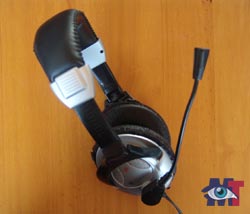 The most common problem is the microphone (or headset) related to its surroundings.
If you are recording sound next to a whirling hard drive or noisy computer, you will produce an audio that appears to have a lot of static but it actually is primarily environmental sound. It is important to make that distinction because static and environmental sound needs to be treated differently. So, the next question should be: “How do I reduce environmental sound?” and this will be discussed in the next post; Let’s first tackle the static problem.
If you have overwhelming static, it can have 3 main causes, presuming that the equipment is not defect:
-
You did not push the jack far enough into the plug hole. Do not force but gently push it further in..
-
The jack or plug is not properly connected. You perhaps may have plugged the mic jack into the wrong plughole. Check that and if it is difficult to read which plug hole is which, use a torch light to read the icons above the plug holes.
-
If none of the above, it probably has to do with the a wrong setting in the software application you are using to record sound. The possible problems can vary so widely that I cannot go into that, but if there is an option in your sound settings that says something like “more compatible”, try that and test again.
Static in the background:
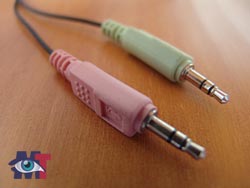 If your mic or headset has a mini jack, you will get static from all over the place. Firstly, because it doesn’t fit tightly in the plughole, secondly because it is not earthed. As a result, it picks up static from your computer, your body, electrical equipment, etc…
One solution is to use a microphone or headset with USB connection.
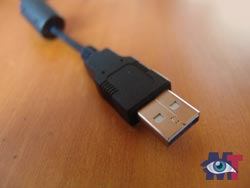 USB connections do not deteriorate as easily as mini jack connections, thus reducing static considerably. If you are going to buy one, be prepared to spend at least $100. Don’t buy cheap stuff, you will end up buying a better one afterward anyway.
Another source of static can be a spare bulb or neon light, especially when recording with a camcorder. Try use a regular bulb and see if it makes a difference.
Close by wireless phone sets and mobile phones can generate static too. Try to turn them off while recording and hear if it makes a difference.
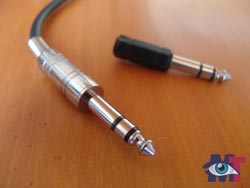 If all the above fails and you work on a desktop computer, you may want to consider buying a good quality sound card instead of the default one. If you spend about $250, you will notice a huge difference, especially if you can plug in a good quality mic with a Stereo jack or XLR connection.
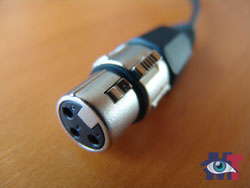 Especially XLR reduces static to an absolute minimum because it is earthed and it fits tightly in the plug hole thanks to a spring lock.
If all the above fails working with a laptop, there are USB recording devices with which you can record sound independently from your laptop.
Afterwards, you upload the audio via the usb port. Devices like that definitely reduce static when you buy the better ones around $200 – $450.
If you work with your camcorder, chances are that the build-in mic picks up sound from the mechanism inside the camcorder. This is not static, but you probably interpret it as such. Either way, it is messing up your audio and I advice to use an external mic, because camcorder mics aren’t that great to begin with, even the prosumer models have disappointing quality (see also the Sony FX1 camcorder review). If your camcorder doesn’t have an input for external mics, you may have to resort to using an external sound recording device, preferably with a USB port or containing a memory card.
Read also How to reduce environmental sound in audios.

Hello–I need your advice on how to go about getting the cleanest, clearest sound possible when recording from my keyboard. I’m getting a lot of ‘popping’ on playback, which I assumed was because I was using a cheap audio cable going into the audio jack on my computer. However, upon installing a TRS balanced cable (considerably more expensive), there was no difference whatsoever.
I get no popping at all when playing my keyboard, just when I record using the free new version of Audacity I recently downloaded. (I’ve tried other software and get the same results.) I’ve tried repositioning the cable, moving the computer around, etc., all to no avail.
Any help you can provide will be greatly appreciated. Thank you!
Use acoustic foam in your room and if your using a condenser mic like me use one of those mic cover thingy from amazon, you can also connect your keyboard directly to the computer that better i have some ancient keyboard from casio and it can connect to pc try with ur keyboard
Hi Paul,
As I’m not an expert on music, I have forwarded your question to my sound engineer. I expect an answer soon.
Rudolf+++
Thank you for looking into this for me, Rudolf.
Hi again Paul,
Eric needs to know a couple of things before he can help you, because the problem is that there can be many reasons why this is happening, so the more we know the better.
Are you using a DAT recorder? If so, have you tried without it? With certain sound cards it can create this sort of disturbances.
What setup do you have:
-Keyboard make
-Operating system computer
-Sound card make and type number
-anything else that can help him to determine the problem.
And at last: is it possible to send an audio file with this popping sound? If so, let me know and I’ll send you an email to where you can send it.
Rudolf+++
Thanks again for your time spent on this, Rudolf. Here are the answers to your questions:
–Not using a DAT recorder; it’s a Lexicon Alpha recording interface
–Keyboard is a Yamaha YPG-625
–Computer is Vista Home Premium 32-bit
–Sound card is Realtek High Definition (came with the computer) #6.0.1.5555 (audio driver)
–I’m sure I can send you an audio file if you like; just let me know the email address.
—Paul
Hello again, Rudolf,
I have a baffling new problem–but good news as well as not-so-good.
Using the latest version of Audacity, I recorded some keyboard stuff. Playing it back on Audacity didn’t sound so good–some crackling and popping, although the sound quality was fine. However, when I played it back using Windows Media Player, the sound was pure: no popping or defects whatsoever.
This presents a new problem. I’d like to be able to hear my recordings before I burn them to make sure of their quality. And, of course, Audacity allows me to manipulate and improve the sound quality; Windows Media can’t do that. Any ideas?
Let me know if the sample file opened okay for you.
Thanks so much for your help on this!
—-Paul
From what I gather here, I think you have a RAM problem. Meaning that you probably do not have enough RAM to play back sound in Audacity. This happens to me sometimes too and I don’t even have a keyboard connected. RAM can get fragmented while you are working and a way to resolve that is to restart your computer when you experience problems like this
Actually, I would not use Audacity when you connect external musical instruments. I think you will be better served with SoundForge, CuBase or any of the pro applications. I suggest you test with a demo version and see which one you like best.
Furthermore, the more RAM you have, the better because Vista eats a lot of it.
I’m having problems with static too…and i don’t know why because I didn’t have this problem before. A month or two ago, everything is fine.
Genie, you may want to check your cables and the connectors. Over time, they deteriorate and are often the cause of static.
Other sources are wireless phones, in fact, anything electrical can cause static if it is too close to your computer.
Hello, I have been running into problems while having being in Skype calls. There is static being heard by my friends coming from my end of things. I have recently gotten a new headset with a considerably better microphone, but there is the same static as before. I believe the problem is the mini jack on my computer and I was wondering how I would go about grounding it, if that is in fact the problem.
Hi Jake,
If you have a desktop computer, you may check whether the sound card is still firmly secured in the slot. If that is not the case, push it back into place. If this is not the problem,
you could try with an adapter from the male jack of your headset to USB, see if that helps. USB connections are better then mini jack, because they are not that fragile.
If the USB still gives static, your sound card probably needs to be replaced. But before you do that, try relocate the computer somewhere else in the house. Static can be caused by other devices too.
Let me know how it goes!
You will seriously have me pay over a 100$ on a simple circuit board?
Hi Frederik,
If you want quality, yes.
I hope Im not too late to this party…..I have a stereo cable running from audio out on my P.A. at church to the camcorder, mic in….sound quality is really good-the problem is when no one is speaking into a microphone, the noise gets really loud on the recording-any ideas?
I have the same problem, ive looked at thousands of tutorials and I can’t fix it. Im going to try audacity and im also gonna plug in the mic to the motherboad instead of my front mic input. Hopefully it will make a difference. If not, it might be the static in the room.
Would using a audio to USB adapter help with the static?
Hi toomuchstatic,
If the mini jack input of your computer causes static, yes, then a USB adaptor will help.
Okay, thank you.
Hey, I also need some help. I’ve been having problems with static as well, I’m using a Lenovo computer with windows 10, and when I try to voice chat in steam, people say they hear weird static. I’m using an internal mic. Everything in my house that could possibly create static is shut off. I’m thinking it may be from the inside of the computer. If it is, is there any way to get it to quiet down?
Hi Sangara,
You mean with internal mic the mic that is incorporated in your computer? If so, that indeed will pick up noise from your computer and you can’t filter that out in live chats.
Best use an external mic, preferably with a USB connection.
Hello there. I am also having audio issues with my mic audio. I have messed with everything on my computer and nothing helps. I have a static noise that I hear (kinda sounds like a hiss) that is not appealing when recording or streaming. I have a Dell computer with realtek, but I cannot adjust my mic setting in Dell Audio in the control panel, and although I read about people editing their mic gain and other various settings in the Realtek Manager, I cannot find the manager anywhere and this really puts a damper on my situation. If you need more information. Let me know. I am thinking new soundcard, but other sources say other problems it can be as well.
Firstly, try to check whether all components in your computer are securely attached.
Another thing that might cause this is another electronic device in the room. They sometimes interfere. Try with the computer in another room or remve all devices (phone included).
If that doesn’t make a difference, you could buy a second hand sound card on eBay and try that out.
If that is not the problem then at least you didn’t lose too much.
I hope that helps?
Rudolf+++
Turns out I just needed a better Mic. My ModMic 5 was a waste of money and didnt give the quality the company said they would. I instead bought a condenser Mic and plugged it in via XLR to 3.5mm and it sounded a LOT better and had no hissing noise. Then I just Bought a Yamaha MG10XU and now I can just make my sound a hell of a lot better through the EQ knobs and other features. So my lesson here was not to buy anything JUST because they claim to be better. It may really not be worth it.
Hi Rudolf,
Thanks for this post, I liked it.
I’m a singer, a beginner on youtube. I got a blue yeti mic as a birthday gift in May. It has an awesome sound quality (48000hz). However, when I record my voice and then try to edit it I can hear that annoying static noise… unfortunately I couldn’t fix it.. the only thing I could do is to reduce the volume of my mic at the “levels” tab in the playback and recording devices on my laptop. It’s bad because I can’t hear myself back when I’m singing. :/
I can’t even edit my voice normally with adobe audition because when I add more eq and stuff it increases the volume of my voice so I can clearly hear that bad static noise so I should reduce the volume. It is a USB mic and it connects well, no problem with that. No phones or any devices around my mic only the laptop. I have a mic stand so my mic is not very close to my laptop.
Maybe my sound card??
I have an ASUS laptop with windows 64-bit OS. and my device manager shows these sound controllers: nvidia virtual audio device and realtek high definition audio with version 6.0.1.8117.
I hope you can help. Thank you for your help! 🙂 (english is not my native, sorry for the mistakes, I hope you could understand me.)
Hi Shiro,
Your English is fine.:-) Did you set your mic to directional mode? The static might be environmental noise if it is set to omni-directional mode.
If that is not the issue, you can try various things:
1. Try placing a mouse pad (with foam layer) underneath the mic’s stand to absorb vibrations from your laptop.
2. If you notice that helps a little, you can take it a step further and suspend the mic with nylon cords from the ceiling.
3. Test the mic on another computer (from a friend or relative) and see what that gives. If it is the same problem elsewhere, go to the store where the blue yeti mic comes from and ask them to check the gain -and volume control as they are the weakest links in this mic.
4. If it works fine on another computer, the laptop is the problem and finding out what exactly causes it isn’t easy. It could be the fan,the sound card,… Therefore, in that case, you could try using a noise reduce filter in post production in the hope that it doesn’t distort too much.
If you want, I can test that for you with your audio file. In that case, let me know and I contact you by e-mail.
So can the inside of the PC affect the sound of the mic?
Hi Albert B,
To a certain extend, yes. The noise of the ventilator in the PC may be picked up by the mic. And as said in the article, a bad connection between the female plug in the PC and the sound card can cause static. USB doesn’t create static that easily since it is quite sturdy.
Hi!
I have overwhelming static with my recording faintly in the background. I have tried different mics and different cables, I’ve tried using FL Studio 10 and 12 as well as Audacity and it’s still happening. I have also tried using another plug point to power my mixer. I have an Alto Live 1202 mixer that is connected via USB to my laptop and that is what I plug my mic into. I work on a Dell laptop. Please help me figure out what it could be? Everything here is no older than 2 years, so it surely can’t be aging yet…
Hi Miki,
Sorry to hear about your troubles. I don’t think the software has anything to do with it.
Some possible reasons:
1. The Dell’s sound card can’t handle the mixer properly. Perhaps you may want to check with the Alto vendor whether the sound card is compatible.
2. Test on another location, preferable in another house. Does the static gets worse or diminishes upon changing location?
3. Perhaps not easy to do, but try on another computer from friend or family, to rule out whether it has anything to do with the laptop.
If none of the three options make a difference, I suggest you call Alto support, chances are something is wrong with the mixer itself.
I hope this helps?
I have a cheap condensor mic it works very good for its price, but when i increase mic boost in win settings to +30 dB there is a LOT of static any way to reduce that without decreasing the mic boost?
30db is a lot, it is logical that this boost environmental noise. Has this mic a USB or mini plug connection? And what is the static exactly? Is it a buzzing, electrical sort of thing or background noise?
its background noise and it has a mini plug connection
It is important to locate where that background noise comes from. If it is environmental (coming from the street, neighbours next door, a machine/computer in the room you work with), you best look for another location to record from or create a vocal booth. Have a look at this article on how to buy or create one yourself: https://www.miracletutorials.com/vocal-booth-homestudio/
Hi Guys, I am planning to buy a gaming laptop for course recording. I am afraid that cooling fan in laptop can cause noise during USB microphone recording. If anyone uses gaming laptop or into recording please guide me.
Hi Kavitha,
You could create a small voice booth, which is basically a sort of shield with foam in the form of a U in which you place your microphone.
Something like this: https://i.ytimg.com/vi/-n8rjteKb5Q/maxresdefault.jpg
Question :- Will a XLR to USB cable do the trick and reduce my mic static?…..
Here’s what i use,
Mic :- Audio Technica MB1k Cardioid Dynamic Handheld Microphone
Cable :- A XLR to a 3.5 mm jack
More Info. :- Mic works fine but picks up a lot of static, tried to isolate the room, went in my closet nothing……
Idk what to do and this was the idea i had after reading this fourm…..