
 UPDATE 8 May 2016: Due to the many problems with the software (after I wrote a review about it) and license policy changes, we no longer recommend using AVS Video Converter. In fact, Handbrake is much more convenient and it is a free product. AVS video Converter is a windows application to convert videos in all popular formats, including FLV (Flash Video), which interested me the most at the time in the context of using video on the web. FLV is the old
 current standard format on websites and video channels, due to its small size and quality. At the time of writing, this AVS application really impressed me. It did quite a good job of converting to FLV and did it very fast, even on an old laptop with only 1GB ram. It was much faster then conversions from Camtasia or Adobe Flash Video encoder, and the output wasn’t heavy at all. I hasten to say that Camtasia and Flash have their own merrits, incomparable with this software, naturally. This app is about video conversion, nothing more, nothing less. Below you see a screen shot of software:
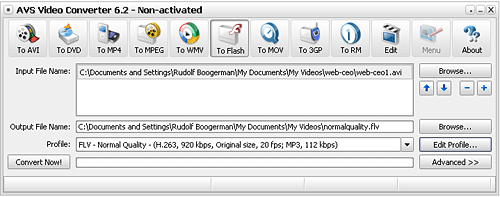
I have to say that I found the default conversion profiles a bit peculiar. For example, when you selected “Optimal quality for FLV”, you got a bitrate of 780Kbps, which is pretty high, and then the audio was only 64Kbps. If you want good quality visuals, you surely want good quality sound, isn’t it? To get a decent quality, the bitrate for sound should be at least 128Kbps. So, you need to adapt those standard profiles in order to get the right result. Fortunately, there are more then enough options to tweak the profiles and the application is easy to work with.
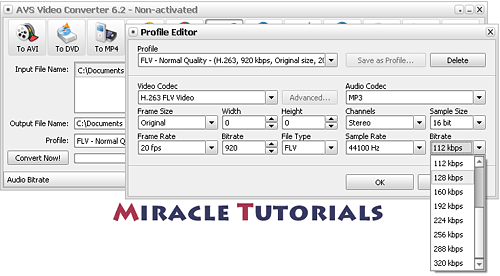
If you do not know how to tweak the profiles (read compression methods), you can test them and pick the one that gives you the best result. Since the application is fast, testing won’t take you hours. Just keep in mind that you set the frame size to “Original” if you want to keep the size of your original video as it is, because every profile comes with a standard size, depending on the format you select. Otherwise, you can go with the flow and produce movies for a wide range of applications, including iPod, Sony PS2 and PS3, mobile, DVD, etc …
With a test I did first in Camtasia and then in AVS4You video converter, I had exactly the same quality while the video converter was nearly 50% smaller in weight, which is a very good thing. Since the application is really quick, it is worthwhile to buy an application like this to convert your videos quickly to web format.
Any video editor I tested took much longer to export to FLV video in comparison with exporting to QuickTime or another standard format. In other words, you could export your projects to Quicktime and then use AVS Video Converter to convert them quickly to FLV.
I have not tested the other formats, but I found the converter already worthwhile for its FLV export alone, since it could save you a lot of time. AVS converter claims to handle the formats below, but there were quite a few complaints later on by readers and supports reacts notoriously slow, so be cautious:
HD Video (inc. AVCHD, MPEG-2 HD and WMV HD), TOD, MOD, M2TS, AVI (DivX, Xvid, etc.), MP4 (inc. Sony PSP and Apple iPod), WMV, 3GP, QuickTime (MOV, QT), SWF, DVD, VOB, VRO, MPEG-1, 2, 4, H.263, H.264, Real Video, DVR-MS, MKV, FLV
You can test it by downloading the demo version, which is fully functional, except that it places a watermark over the video.
I originally gave it a 4/5 star rating, but decided to change that into a 1/5 because of the support problems and policy changes (see comment by reader Dale Dude) were it not for the somewhat weird combination of settings in the FLV and SWF profiles. But apart from that, it is a great application and you can even process several videos in one go. Therefore, I give this app a 4/5, which it really deserves!
$59 (unlimiteds license) may seem a bit much for a simple converter but some compression codecs require a license fee which have to be included in the pricing, and because this application contains a sturdy set of compression codecs, the pricing of the AVS video Converter is just right in my opinion.
A real shame there isn’t a Mac version yet!

sometimes when i try to convert a .avi to dvd ,i get only 1 files after conversation.why
Hi Sameer,
I just tested the DVD format myself and got the same problem myself, no audio file. I have asked the follks at http://www.avs4you.com/AVS-Video-Converter.aspx about this in the meantime and will let you know their response. I tried out all sorts of settings and couldn’t get it to work either.
Hi again Sameer,
I had a response from AVS4you in the meantime. I’m sending them screenshots at their request and I will let you know the outcome. You may also contact their support directly, of course.
I just purchased this program w/ the unlimited package. I’m disappointed in the fact that I can’t comment on quality as I can’t even get the video on the 2008 iPod nano. It says it’s the “wrong format of iPod’s database. Do you want to make a new database?” uh, no. I’ve sent an e-mail to support. I’m concerned if I will get a response, I’ve read on other blogs people never received a response.
Hi LittleC,
That doesn’t sound too good. I got a response after 4 days, which is indeed rather slow, but they did respond. Let me know if you get no response at all after 5 days or so and I’ll contact them.
As a customer, you have the right to demand your money back if software doesn’t meet the requirements, but let’s first see if we can solve this.
AVS4you support responded within 24 hours this time, so they seem to get better at this.
If you have problems with the DVD options, they recommend unistalling the application and download the latest one.
Steps for successful uninstall:
1. Go Start> All Programs> AVS4YOU> Uninstall.
2. Go Start> Run… Print regedit in the opened window and click Ok. In the opened Registry Editor window please find and delete all AVS4YOU folders.
HKEY_LOCAL_MACHINE > SOFTWARE > AVS4YOU (delete it).
HKEY_CURRENT_USER > SOFTWARE > AVS4YOU (delete it).
3. Go Local Disc (C:) > Program Files > AVS4YOU (delete it).
Go Local Disc (C:) > Program Files > Common Files> AVSMedia (delete it).
Go Local Disc (C:)>> Documents and Settings>> All Users>> Application Data>> AVS4YOU (delete it).
Now install the program anew on your PC. Here is the link to download the latest version of AVS Video Converter:
https://download.avs4you.com/AVSVideoConverter.exe
For direct support, Ksenia from support writes:
Please feel free to ask questions, submit requests and suggestions via our Online Support Service to get prompt assistance and be able to track the support answers online: https://support.avs4you.com/Support.aspx
Best regards, Ksenia Borisova
AVS4YOU Support Team
http://www.avs4you.com
it converts the file but I cant find it after it is converted. Where do I find it? There is no “help” option on the tool bar.
Hi Joe,
When you open AVS converter, you see a field with Input file name and one that is called Output File name. To the right of the Output File name field, you will see a button that is called “Browse”.
When you click on that, you can select any folder on your computer that you like and save the video there.
In case you cannot remember, there is nothing for it but to use the Search functionality of your computer and type the name or the part you remember in the search box.
I hope this helps?
I agree that a Help option would be useful, yes.
Hi again Joe,
There is actually a help section for the AVS converter. You can download it here: https://www.avs4you.com/Downloads/AVS4YOUHelp.exe
For those of you having problems with the DVD section (no audio in the folder), you are advised to download the latest version of AVS4you.
Hopefully that helps to solve all problems 🙂
hi,your video converter software is good,but I like another converter software better.I find that they havd many the same functions.Another converter software is Socusoft DVD Converter.Any one can know more from
https://www.socusoft.com/socusoft-dvd-converter.php
I have a slight problem in the AVS Video Converter it says that the Quictime File is protected what should I do?
Hi Vilma,
Possibly 2 options:
1: The QuickTime movie is indeed protected, meaning that the author does not wish you to convert it into another format. Not much to be done about that, unless you want to resort to hacker software to get around it.
2: Sometimes, software gives an answer when an error occurs, even if it doesn’t have a clue what is causing it. The simple way to find out is using other software to convert the same QuickTime and see if you get the same result. If you go to https://www.imtoo.com/ and download a demo version of IMtools, which is DVD ripping software, you can test with that application if the QuickTime movie is indeed protected or not by trying to convert it to MP4. Or perhaps test out the software Jesoph suggests in the message just above yours(I haven’t tried it yet myself).
Hope this helps to find out the problem. Let me know how it went, ok?
Ive just purchased the software but cant seem to get the edit profile button to work. what am i doing wrong? the button is faded out.
Hi Joe,
Doesn’t look like normal behavior to me. I’m afraid I can’t help you here, so I suggest you contact the vendor’s Support because the Edit profile button should be accessible from startup. Probably some bug in the software. They generally fix things quickly.
https://support.avs4you.com/login.aspx
Let us know what response you’ve got, ok? Thanks 🙂
AVS Video Converter it says that the Quictime File is protected, please help
Hi MMA,
Let me repeat what I said to Vilma:
Possibly 2 options:
1: The QuickTime movie is indeed protected, meaning that the author does not wish you to convert it into another format. Not much to be done about that, unless you want to resort to hacker software to get around it.
2: Sometimes, software gives an answer when an error occurs, even if it doesn’t have a clue what is causing it. The simple way to find out is using other software to convert the same QuickTime and see if you get the same result. If you go to http://www.imtoo.com/ and download a demo version of IMtools, which is DVD ripping software, you can test with that application if the QuickTime movie is indeed protected or not by trying to convert it to MP4.
Hope this helps to find out the problem. If that doesn’t give you a clue, I suggest you contact AVS4you support because it is their software.
Let me know how it went, ok?
cool staff ,thannks for sharing . with your guide ,converting video become a simple job.
cool staff ,thannks for sharing.
This video converter is great , i have tried it.share you a another video converter
http://www.best-video-converter.net
@becklewis, other suggestions for video converters are always welcome, but it would be nice if you could explain what is special about it because I cannot follow-up on every application.
Go to you Add remove program then remover the avs updater and avs4you leave the avs video converter.
Now type cltrl + shift + esc then windows task manager will appear go to process right click the the avs video converter.exe set priority to high or above normal..
see your convert speed
i’m trying to convert movies from AVI to MPEG, but when i put the dvd in, i have no sound. what am i doing wrong
Hi Tasha,
I think you best contact support directly: https://support.avs4you.com/Support.aspx and have them sort it out for you because it is quite some time ago since I used this application for testing.
i’m trying avs video convert 7 and it seems like a good program for converting .m2ts files to .mkv, except i don’t see any way to keep the same file names for a batch conversion?
if i convert a single file, it keeps the file name…but if i choose multiple files to convert it overwrites them with the original file’s name. if you choose ‘browse’ next to the output file name, you can choose a folder but it switches to “untitled.mkv”.
unless i’m missing something, that’s enough to keep me from buying it.
@kmfdm, have you contacted their support about this? I think there must be a way to set this as you like, otherwise what is the point of this feature?
@Rudolf Boogerman ,first thanks for sharing this great info , i have downloaded AVS video converter , but it cant convert youtube video to my new bought ipad , does this program support ipad H.264? some forum guys suggested me a ipad converter,called , i am not sure it is good or not need you advice
http://www.dvdipad.org
Thanks in advance
Hi Hansekarl,
As I do not have an iPad, I cannot check myself. However, they have a free trial version, so I would certainly try it out. As it is specifically targeted towards iPad, you probably can’t go wrong with this, but as I said, you can test a demo version.
I downloaded this software to test. It had a problem with converting large MKV file to MP2, I contacted support, they took 3 days to get back to me with a cut and paste response basically wanting me to give them the source file so that they could find the problem. I noted others on their forum with similar problem.
My investigation revealed that this software suffers from memory leak and will crash on large files.
Then there is the problem that the licence is hardware specific requiring a new licence if you happen to upgrade to another machine.
I was not interested to pay money to be a beta tester for them, so I tested the Xilisoft version and it worked well with the same quality as AVS.
My experience with this company has a positive, it showed me to keep clear of the products, that they have very slow support.
Sorry about that, Rob. Yes, they can be slow in response and I have a love-hate relationship with the software, but it has fine tuning options I really appreciate
I converted a MOV file of 13GB to MP4 without any problems, so I’m not sure about the memory leak. Perhaps it is a question of having enough RAM?
Xilisoft is quite good, yes. I wrote a review about the audio application some time ago.
pro:
1. Comparatively same as all others.
con:
2. Painfully slow.
3. Difficult and inconclusive choices.
4. Stealth installing of 2 related/unrelated programs.
5. Resultant avi cannot be used on stand-alone DVD players, others can!
6. Uninstalling unclean
Thanks for your comment, Madala. But I do not agree fully with point 2 and 3.
2) I have never experienced AVS as being slow, unless you tweak certain settings. Multipass is one of them but you seldom need it.
3) The choices are not always ideal but you can say that from practically every converter, including the high end ones. You can use the profiles as they are or use deep level tweaking, which goes surprisingly far for such a cheap converter and this is why you may experience it as difficult. My real objection is that some standard profiles do not deliver the output as they should. I wrote a tutorial that covers one of the most used presets and how to tweak it: https://www.miracletutorials.com/converting-video-tutorials-to-streaming-mp4-for-s3-amazon-using-avs-video-converter/
For the rest I agree with you.
hi, im converting a MKV file(7Gb) to MP4(PS3) and it takes 40hours! did i somthing wrong?
Hi Tony,
You probably activated one of the options that requires a lot of horse power from your computer. I suggest you look into the tutorial just above your comment and try again. Normally a video of 7GB should be converted under an hour, depending on your processor.
thank u soooooooooooooooooooo much chhilke age se dhyan rakhana
Hi
I’m trying to convert MKV files to AVI, however it converts without sound, why is this? The original audio is mp3 and the new file audio is mp3 with same settings. I’ve tried twice now and video works, the sound doesn’t. Please help, thanks.
P.S: original mkv file does have sound and it works.
Hi Ash,
AVS converter has a couple of bugs and converting to AVI is one of them. I can’t get the audio to work either with AVI. That said, AVI is a very old format that is actually obsolete. It is far better to convert to mp4 as it is the standard currently, supported most widely.
When I try to convert my powerpoint into video, it says ERROR UNKNOWN. Any help??
You will need to give more information on how you do this, spaz. Otherwise I cannot help you.
whoah this blog is fantastic i love studying your posts. Keep up the good paintings! You already know, lots of individuals are looking round for this info, you can help them greatly. thanks!
I can`t find any way to automatically rename the output file with the same name as the original . Do we have to write the name everytime we do a conversion?
If I`m queueing a list of file to convert and the output name it`s not automatically taken from the original files, every converted file will have the same “no title.avi” name!!
have I been clear?
that`s preventing me to buy….
Yes, Giopi, I see your point. Looks like yet another bug in the application. I will ask them and get back to you.
would be wonderful!
I think it`s a key point in a conversion soft.
🙂
Alguien me puede indicar como hago para que al crear un DVD con varios videos estos dentro de la carpeta “VIDEO_TS” me queden individuales y no en uno o dos archivos?
Gracias por la ayuda.
Cade.
Hi Obispo,
VOB files can be a maximum of 1 GB in size, which is why multiple VOB files are required. So, I do not think it is a good idea to force them into one file because the DVD would probably not play on most devices.
Archivos VOB puede tener un máximo de 1 GB de tamaño, por lo que varios archivos VOB son obligatorios. Por lo tanto, yo no creo que sea una buena idea de obligarlos a un archivo porque el DVD probablemente no jugar en la mayoría de los dispositivos.
How can i import new text in avs video converter. plz help me………………………….!!
Hi Kaushik,
For support of this product, best contact support on the AVS website directly because I do no longer have AVS on my new computer. I’m using HandBrake currently. Sorry about that.
Hey there
I have been doing a lot of converting in batch mode. My original vids are in 4:3 and I want them to be in 16:9. After converting finishes I see only the first one in the list is in 16:9. The rest are converted in 4:3. Any ideas?
I’m not sure it is a good idea to convert 4:3 videos to 16:9 using a converter because it will distort the video. I rather advice to use this approach: https://www.miracletutorials.com/improve-videotutorials-youtube/ It’s more work, but the result will be much better.
It does not answer your question, of course. But as I said to Kaushik earlier on, you should best ask support from AVS directly.
Hi Rudolf
Thanks very much for your answer but I was determined to figure this out, and I did ;oD
Even although the main set up does all videos, eg: codecs and audio, I had to go through each video individually and select which aspect ratio I wanted. Took a bit of time but I felt it was worth it.
Thanks again.
I am totally new to burning video files to dvd
i tried using avs video converter, but the problem is after conversion the output file size is huge say 35 gb whereas my input file size is just 2gb.
and after i burn only few beginning video files are written on the dvd.
please somebody help i am totally new to this
Hi Katty,
Try to set the bitrate lower. It is probably set too high. Between 2500Kbps and 1000Kbps you should be good to go. I actually use HandBrake these days because AVS has quite a few bugs. Handbrake is a free video converter. Here is a step by step tutorial for it: https://www.miracletutorials.com/how-to-encode-video-for-web-iphone-ipad-ipod/
Let me know if you have further issues.
im trying to convert an AVS file to AVI so that i can put it on YouTube but whenever i try to convert it it says that its in the wrong format. what do i do?
Hi Autumn, You best convert the video to MP4 because AVI is an old format that is nol onger supported by most video services.
I’n trying to convert an .mkv file to .avi but it only does 17 seconds, the video length is over 30 minutes and is 190MB file but AVS says it’s only 5MB. I can’t figure out why it won’t see and convert the full length. this is very frustrating!
Hi Jenn,
Since I cannot see how you do this conversion, I have no idea how to help you. Slso, I no longer work with AVS, but use Handbrake instead. With each new version, AVS introduces new bugs, that is why we stopped using it.
Dear Autumn,
Please try to use the latest versions of AVS applications listed on our official website http://www.avs4you.com and follow the instructions on how to convert for YouTube: http://onlinehelp.avs4you.com/AVS-Video-Converter/Features/Converting/ConvertingforVideoSharing/youtube.aspx
You are always welcome to also contact our Support Team at http://support.avs4you.com/Support.aspx for more detailed instructions.
Dear Jenn and Rudolf,
Please make sure you use the latest version of AVS applications listed on our official website http://www.avs4you.com.
We appreciate your opinion about AVS applications and are very sorry if you have met any difficulties while working with the programs.
You may always contact our Support Team to get appropriate assistance: http://support.avs4you.com/Support.aspx
They will be glad to assist you.
Anyone know how to get purchased DVDs to convert to MP4 using AVS Video Converter? It keeps saying “DVD contains copyright content” and will not convert. I specifically bought the program to do just that – make copies of kid’s movies to put on Kindle Fire for road trips.
Dear James,
we apologize for such a delay in replying.
Let me inform you that AVS4YOU applications do not work with protected materials.
Thank you for your comprehension.
For futher assistance and information please, contact our Support Team
http://support.avs4you.com/Support.aspx
Kind regards.
Hi,
could anyone please help how to convert full video length. I have a vob file of 1GB and of more 70 minutes. when i convert it only shows 28 minutes video.
Would appreciate your response.
Thanks
Hi Ash,
If you are using AVS video converter, best contact their support team. I no longer use AVS myself.
Or you could try this free app: http://www.wondershare.net/ad/video-converter-ultimate/index_both.html
Scam on lifetime license – DO NOT SUPPORT SUCH COMPANIES
Like many others I had a lifetime license and the company changed their policy since my purchase to state that the license is only valid on the very original computer you install the software on.
Their “Free” is a ploy to force you to the commercial offering. Obscure web sites hosting “reviews” of how great the software is should be a sign of a problem.
ECHOING Dale Dude
Scam on lifetime license – DO NOT SUPPORT SUCH COMPANIES
I purchased a lifetime license then they changed the policy.
Screw them. DO not buy AVS software SCAM SCAM SCAM
Hi TED, I agree their license policy is quite bizar.