
Updated 26 November 2015 – Vimeo.com has 3 standard ways to display videos directly on your website or blog. In this article, I explain how to use the standard method, Embedding. In the coming article I show the other methods. But let me first sum up the all the options so that you know what to expect.
- Embed a single video.
- Widget: Badge – show a set of thumbnails for several videos.
- Widget: HubNut – show an slider with several videos.
Method 1 shows a single video on a page, although you can embed more then one video.
Method 2 displays a range of thumbnails from the last videos you created. You can determine how many.
Method 3 does the same as method 2, except in the form of a slider (static or animated.
None of these methods require knowledge of coding, but you do need to copy and paste the code generated by Vimeo. As said, the last 2 methods will be shown in the next article.
1. Embedding a single video
This is a straightforward process. You go into your Vimeo account and click one of your videos. Then you will see a black rounded icon with a paper airplane:
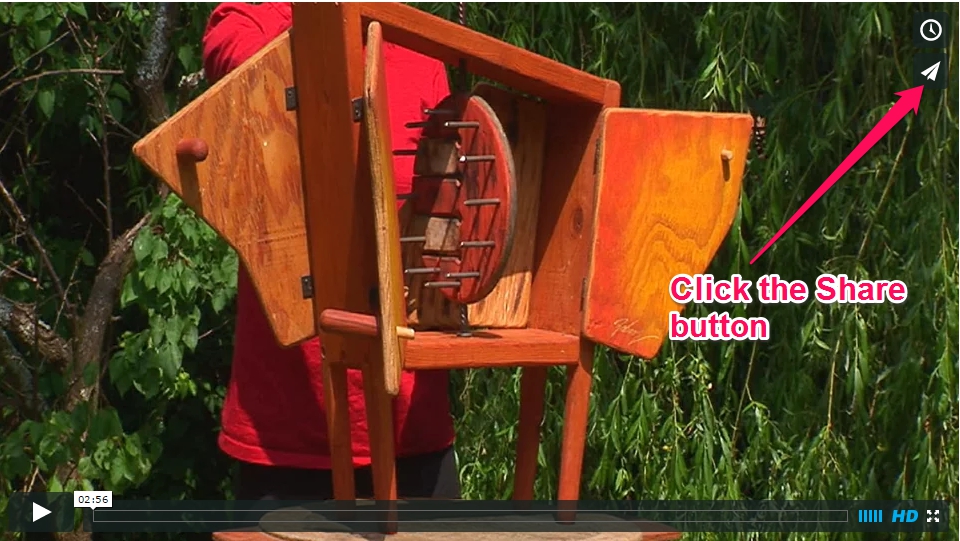
Click that button. A dialog box appears with share and embedding options. Since we want to embed the video, we are only interested in the Embed options. At the bottom right, click Show options:
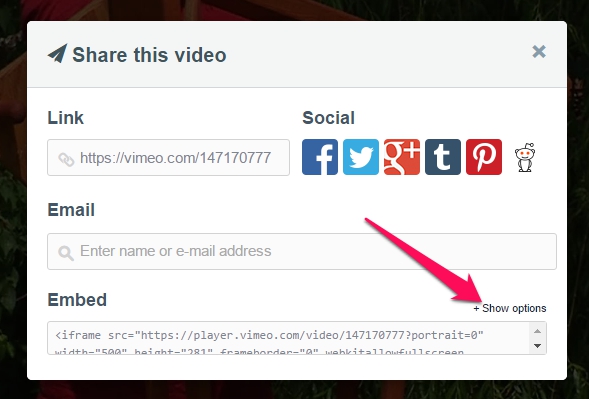
The panel enlarges after clicking on the link. Scroll down a little until you see the options just below your video:
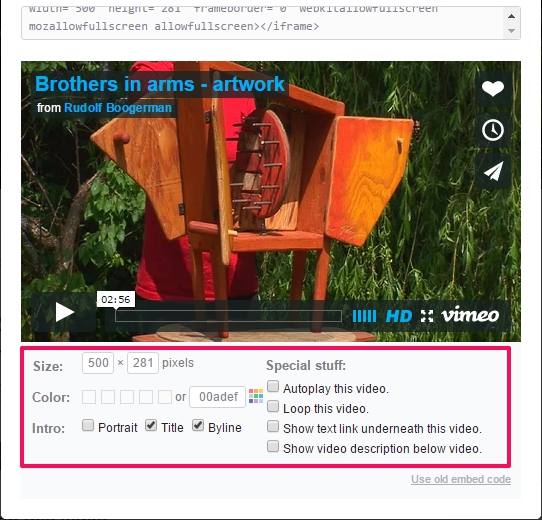
You can test various options which show in realtime on your video. Generally, you will want to set the Size according to the width of your page. When you change a value in either the width or height, the related value changes in relation with the dimensions (aspect ratio) of your video:
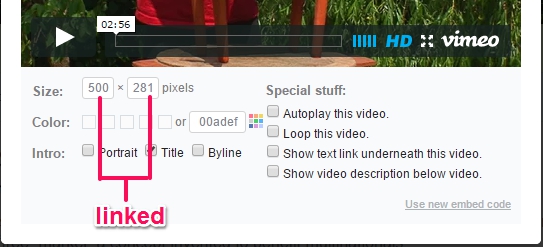
This is a real time saver, otherwise you would have to calculate the relation between Width and Height yourself. Thanks to this feature you simply can’t go wrong!
You can change the Color as well. This influences the color of the Text on top of the video. This way, you can adapt the color to match your site. Select a predefined color (little boxes) or use the color selector to create a custom color:
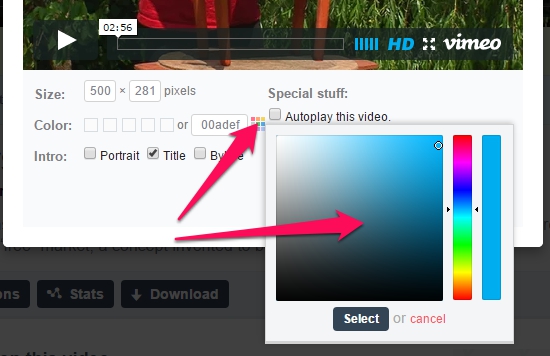
The Intro has 3 options: Portrait (which is your Vimeo avatar), Title (of the video) and Byline (author name).
Special stuff determines the behavior of the video player. This is quite self-explanatory:
For instance, if you want the video to start playing automatically upon page load, tick the Autoplay this video box.
When you are done, you can select the embedding code at the top of the panel:
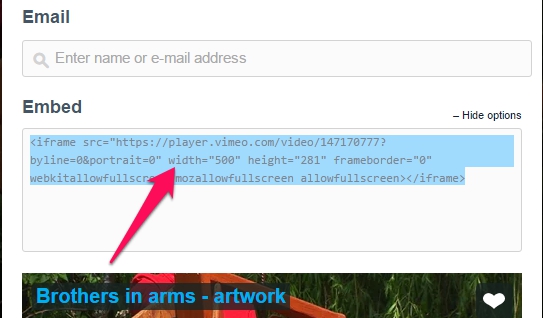
Vimeo again makes it easy for us, when you click in the box, the code is selected automatically. However, if that doesn’t work for whatever reason, set the cursor wherever in that code box and then press CTRL+A (Windows) or Command +A (MacOS). That selects everything for sure.
After that, press CTRL+C (Windows) or Command + C(MacOs) to copy the code.
Now go to your site:
- Select the page or post where you want to embed the video
- In the html mode (Text tab in WordPress) of the page, place the cursor at the spot where you want to show the video
- Press CTRL+V (paste for Windows) or Command+C(paste for MacOs) to paste the code into the page.
Keep in mind that standard, this is the iFrame method. Not all content management systems allow this. In the past, this was not possible in WordPress, for instance. But since version 4.x, this is no longer a problem. Here you see an example of an embedded video with the iFrame method:
What if iFrame is not supported on my site?
On Joomla, you can use a wrapper module. In that case, just copy the link to the video from the address bar or use the Share link at the top of the panel. You will have to set the width and height manually in that case.
Another method which allow to embed video in any site:
In the same panel, you can scroll down to the bottom, where you find a link called Use old embed code:
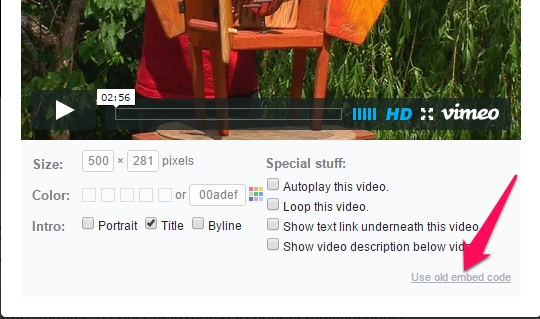
As soon as you click on it, the code at the top of the panel is updated. Scroll up and see how the code has changed:
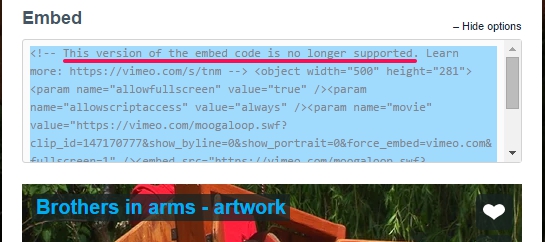
Note that there is a comment (underlined in red here) above the embedding code that says that the embed code is no longer supported, but you can disregard that, it does work. I just wouldn’t use it unless you really have to.
Here is an example of the same video with the old embed code:
Is the player responsive?
Yes and no. The video will shrink according to the width of the browser window, but you get black bars at the top and bottom when the size becomes smaller then what you have set in the Embed options. This is not really ideal, but if you are non-technical and you don’t mind those bars, you are good to go.
If you are a web developer, to make the player fully responsive, you need to wrap the iframe in divs. Here is a technical article that describes the process:
https://css-tricks.com/NetMag/FluidWidthVideo/Article-FluidWidthVideo.php
If you are posting on a old WordPress blog, you may need to wrap the embedding code between <code></code> tags, like below:
<code>
<object width=”500″ height=”281″><param name=”allowfullscreen” value=”true” /><param name=”allowscriptaccess” value=”always” /><param name=”movie” value=”https://vimeo.com/moogaloop.swf?clip_id=5367093&server=vimeo.com&show_title=1&show_byline=1&show_portrait=0&color=00adef&fullscreen=1″ /><embed src=”https://vimeo.com/moogaloop.swf?clip_id=5367093&server=vimeo.com&show_title=1&show_byline=1&show_portrait=0&color=00adef&fullscreen=1″ type=”application/x-shockwave-flash” allowfullscreen=”true” allowscriptaccess=”always” width=”500″ height=”281″></embed></object><p><a href=”https://vimeo.com/5367093″>Prisoner of Rules – art video</a> from <a href=”https://vimeo.com/rudolfboogerman”>Rudolf Boogerman</a> on <a href=”https://vimeo.com”>Vimeo</a>.</p>
</code>
Word of caution: on Vimeo, commercial videos are not allowed in the Free and Vimeo Plus account. See also the article Vimeo-the-secret-of-good-quality/ for more info.
Can’t I just plug in a link to the Vimeo video?
Yes, you can in WordPress since version 4.3. In that case, just use the Share link, like https://vimeo.com/147170777 and paste it in text mode in your post or page. The only problem is that you have no control over how the player behaves, but if that is no problem for you, it’s the fasted method.
In the next article it is going to be very exciting when I tell you about the Widgets, because with them you can show a range of videos without much effort and it updates as soon as you change the content of the widget on Vimeo itself. Stay tuned!
Thanks a tonne for this tutorial
Hi Rudollf,
thanks a lot for sharing your experiences!
I’ve read a few of your tutorials, and they are excellent, informative and easy to grasp.
I really appreciate this.
Cheers!
/Petit
It’s a pleasure, Petit! Thanks for your feedback.
Rudolf+++
Thanks, that helped me a lot! 🙂
I’m loving it!!!
Thank you for this!
I wasn’t putting the <code> at the beginning and the end.
Yes @Adam, it indeed sometimes helps to put the embedding code between those tags.
Remember, the closing tag looks like this </code>
Hi, nice for having You around, thanks.
Do You know how to connect a vimeo embedding code snippet to an image/thumb inside a wp posting??!
I tried different set ups – nothing worked so far …
Hi @Cinoa,
You actually can’t because the player of Vimeo resides on their server, and as such, you cannot influence it. But you could create a complicated workaround. If you install a lightbox plugin and then create an external html page which only contains the embedding code of Vimeo, then place an image in your article that links to that html page in such a way that it opens it in the lightbox, then it is possible. But I haven’t tested this myself.
Thank you SO MUCH! I spent all day trying to get a vimeo to appear on my wordpress blog.
I’m glad you found this helpful @Kitty.
Hi Rudolf, I seem to be the only one on this planet that cant still embedd..
am building my site on wamp and joomla (so its not online yet) i have followed the above technique on the admin side, after pasting the embedded link (i did add the <code> and </code> at the end. but all i get is the same url on my front page.
Is there something else am suppose to do after </code> ??
Thanks
Malcolm, you are not the only one, trust me on that 😉
<code></code> actually only works with WordPress. For Joomla, you need to to go to the vimeo video you want to place, click on the icon Embed”.
Then select “Old embed code“.
Then you get something like this:
<object width="500" height="281"><param name="allowfullscreen" value="true" /><param name="allowscriptaccess" value="always" /><param name="movie" value="https://vimeo.com/moogaloop.swf?clip_id=5367093&server=vimeo.com&show_title=1&show_byline=1&show_portrait=1&color=a8a8a8&fullscreen=1&autoplay=0&loop=0" /><embed src="https://vimeo.com/moogaloop.swf?clip_id=5367093&server=vimeo.com&show_title=1&show_byline=1&show_portrait=1&color=a8a8a8&fullscreen=1&autoplay=0&loop=0" type="application/x-shockwave-flash" allowfullscreen="true" allowscriptaccess="always" width="500" height="281"></embed></object>
Copy that whole bunch of code and paste it into the html code view of the editor.
That should work on joomla, I just tested it. But the method with iframe does not work.
Hope this helps, Malcolm?
@Rudolf…
Yes..Yes…and YES, it worked…
you just delivered me from my anguish, u cant believe i was just pasting the embedded code without clicking on Html.. i feel so stupid for not pasting it on html (how else will it work??!!!)
Thanks once again, am off for a cold beer
Hi,
Nice article. But what about the “Method 2”.
Can you please post something for Method 2.
I need some guidancefor the same.
thanks..
Hi Abhie,
Here is the article about method two, the Badge:
https://www.miracletutorials.com/howto-vimeo-badge/ and here the article for the Hubnut:
https://www.miracletutorials.com/howto-vimeo-hubnut/
You find these links at the bottom of each article too, under Related articles.
Thanks for the great tutorial..Kindly tell me is it possible to enable viewer comments on my video when it is embedded on a website and how.
Thanks again.
Hi Arun,
I will check it out and come back to you.
Hi again Arun,
Vimeo does not offer this functionality on their videos but if you work with a content management system like Joomla or WordPress, you can activate Commenting on every article/post. Thus, if you place a vimeo video in an article or post, visitors can comment in the comment box at the end of the page. now, if you only put a little bit of text under the video, then the comment box is close to the video. Not the ideal perhaps, but it can work. Many sites do it this way.
With Drupal you probably have to install a comments plugin.
For regular websites, this isn’t so easy because you need to involve a web developer to create comment functionality for you. This is not as expensive as it sounds, especially not if you go to https://www.elance.com or any of those developer networks where you can post a job offer.
Thank you so much Rudolph for your help and your patience.
I guess I’ll take a look at some of the CMSes like WordPress etc and try to do it myself.
Thanks again for your help.
It is not so different from youtube embed videos at all
It’s not that different, except that you have more options and to be honest, the design of the Vimeo player is a lot better.
Although I like YouTube, I find vimeo regarding quality content and design superior.
But that is a personal meaning.
Sensational.
Worked a treat. The trick was the Old Embed code.
The iframe stuff in the new cose really screwed it.
Thanks so very much.
Hello, awesome tutorial!
I have a question. I’m using wordpress and I’ve protected my videos with a password in the settings screen, as I want only registered users to my wp site to see these videos. As expected the vid on my site says ‘unauthorized access’. Is there a way to ’embed’ the password into the code so vimeo displays the video in my site?
Many thanks again!
Bruno
Hi Bruno,
Even if you could put the password in the embedding code, it won’t do anything. Also, if you would do this, non- registered users would find the password in the source code and get access anyway.
The best thing you can do is to work with a membership plugin like S2Member to restrict access to certain pages. The free version gives you enough options to work with.
Hope this helps?
Thanks a lot Rudolf, truly appreciated! I’ll try your plug in 🙂
Cheers!
salve, ragazzi non capisco come inserire i codici embed nel mio sito potete aiutarmi grazie.
Pino, your site is made in Flash, you cannot use embedding code in a Flash site. Instead you will have to import a video into your flash project. This is not possible with a Vimeo because you need an MOV video.
I once tried to load external embedding code via a text file but it just showed the embedding code.
I hope I understood your question correctly. My Italian is severely limited 😉
hey guys
I cant get the thumbnail photo to come back up after the video ends – it just opens my video bank on Vimeo.
can you halp me??
thanks
Hi Yuval,
I’m not sure I i understand what you mean by a video bank. Do you have a sample page so that I can have a look?
hey there,
thanks for such a helpful tutorial. i was searching for ages trying to upload my vimeo vids at the correct size… you’re tutorial explained it all. 🙂
Thanks, Liam. I’m glad you find it useful.
Hi Rudolf
I have a 16 minute video edit of some people talking at a charity conference. I was sent a number of files on a DVD.
My aim was to upload to Youtube and show it on our site.
I decided to try Moyea video converter, which worked fine and converted all the files to a single, 306M MPEG-4 file – which has a watermark as I only downloaded the trial.
I uploaded the vid to YouTube but it’s over 15 minutes and YouTube threw it out.
I’d be grateful for your advice on a couple of things. First…I noticed you recommended Handbrake on another post, as well as showing how to use AVS. Which is your preference? I don’t mind paying for a good program but free is always nicer 🙂
Second…should I compress the video from its 306M size? NCH has a cheap program called Prism. Do you recommend compressing and is Prism worth buying?
Prism is also described as a converter and options without and with MPEG-2. (So I am now very confused ;()
Third…should I look at using Vimeo to stream the conf video rather than YouT would involve editing (a possibly impossible task).
Fourth…I have an S3 account and I also have your S3MediaPro. The video will eventually be shown on a joomla site, currently in development. altho in the meantime, it’s a wordpress blog.
I hope I haven’t asked too many questions!
Thanks in anticipation.
Tess
Hi Tess,
I have no preference for either HandBrake or AVS, they are both good in thier own way, except that HandBrake is on Windows and Mac + it is free.
When uploading a video to a video service like YouTube or Vimeo, do not compress it because those services will do that anyway and you cannot compress a video twice because quality deteriorates dramatically that way.
The hassle free solution will be to upload to Vimeo. Disadvantage is that Vimeo does not generate as much traffic as YouTube does.
So, if maximum impact is a concern and you want to do the effort, upload it to Vimeo, then create a shorter version for YouTube. You only need to pinch off 1 minute, after all.
I do not know prism myself, so I cannot comment on it, alas. MPEG-2 is a format for DVD, I would not use it for the web because the quality isn’t that great. MP4 is currently the most versatile container for video combined with the H.264 encoder you get a very decent video. Both the AVS and Handbrake tutorial on this site will tell you how to do that.
Yes, I thought it was you, Tess. 😉
Not sure you knew, but we also have a WordPress version.
Thank you Rudolf! 🙂
I will try Handbrake and upload to Vimeo on the temporary WordPress site. Traffic is not critically important to this. The video is a record of an event, more of an archive and I think if I use relevant keywords, it might be easy for people to find it anyway. I will send you the link when uploaded.
When the Joomla site is ready (in about a month’s time), I presume I can publish it using S3?
I had noticed that you had a WP version, but can’t justify the cost as it’s not a commercial video.
All the best and thanks for your wonderful support and good advice
Tess
Yes, you can publish it from your S3 account as well.
May I ask what type of video the original is? You might be able to upload that directly to Vimeo without conversion upfront.
The video was sent on a DVD in a folder with several files. I am just converting it using Handbrake right now!
Will let you know how I get on….
followed step by step your instruction but on my blog it’s displayed just the link and not the vid. My blog works with wordpress MU could you help me to find out a solution?
Hi Paolo, can we show me a test page? I would like to have a look at the source code.
Hello Rudolf, thanks for your help…
this is the test page https://www.vimeo.com/25647403
and here yuo can find how it is showed on my blog http://freedomisbetter.it/archives/659
Hi Paolo,
It looks like WordPress is removing everything above that javascript link. Your source code only shows
<a href="https://vimeo.com/25647403">GENTLEMEN'S SUMMERCAMP 2011 EPISODE #1</a> from <a href="https://vimeo.com/gmrproduction">GMRPROD</a> on <a href="https://vimeo.com">Vimeo</a>.
While it should show:
<object width="400" height="225"><param name="allowfullscreen" value="true" /><param name="allowscriptaccess" value="always" /><param name="movie" value="https://vimeo.com/moogaloop.swf?clip_id=25647403&server=vimeo.com&show_title=0&show_byline=0&show_portrait=1&color=ff0000&fullscreen=1&autoplay=0&loop=0" /><embed src="https://vimeo.com/moogaloop.swf?clip_id=25647403&server=vimeo.com&show_title=0&show_byline=0&show_portrait=1&color=ff0000&fullscreen=1&autoplay=0&loop=0" type="application/x-shockwave-flash" allowfullscreen="true" allowscriptaccess="always" width="400" height="225"></embed></object><p><a href="https://vimeo.com/25647403">GENTLEMEN'S SUMMERCAMP 2011 EPISODE #1</a> from <a href="https://vimeo.com/gmrproduction">GMRPROD</a> on <a href="https://vimeo.com">Vimeo</a>.</p>
Did you place the code via the html editor?
My problem is exactly what you have mentionated. Yes I placed the code by the HTML editor and have also included the frame
.I don't have this problem using embed code of youtube's videos!!!
Are you on wordpress.com or selfhosted?
Also, this may be a silly question, but you did click on the link “Old embedding code”, right?
iframes do not work on WordPress.
Yes I used the Old Embedding code 🙁 !
No i’m not on wordpress.com but on tophost.
Thank you anyway for your help
The thing is, in your header, I see a the generator meta tage saying wordpress.com
This is something you normally do not see on a self hosted site. Normally is shows the version of WP instead.
Have you tried upgrading to the latest version of WordPress?
I’ll try because I think it’s the best solution. I have anoter blog on altervista.org and they provide a latest version of wordpress that read perfectly the vimeo code
Yes, because your version of WP is really too old now.
Hi Rudolf.
First of all, thank you for the tutorial.
Second, my boyfriend (he doesn’t speak English, that’s why I’m writing) has a problem with embedding videos from vimeo to wordpress. For him the iframe actually works, but he’d like to know how to delete the title from the top of the video. He unticked the option for title and byline both, but only the byline has disappeared.
We tried with the old code, but ran into what seems like the same problem as Paolo before; WordPress removes the beginning of the code and so it doesn’t work. We’re using the HTML editor and added both code tags as instructed…
The web page in question is this:
http://foodforpixels.com/documental/
He’d like the blue “Elogio a la espalda” on top of the video to disappear. The code he is currently using is the new embedding code.
Do you know how to help him?
Thank you,
Essi
Hi Essi,
What your friend has to do is when he clicks on Embed, is to click on Customize embed options at the bottom of the popup box.
There he will see a set of choices in the form of check boxes, under which Title. Deselect Title and you will see that the title disappears.
I hope this helps?
hi I’ve just got my web people to add player and code and the video is way small in the player so I think your tutorial helps me sort this out. I assume in my site they can make player larger.
just wanted to ask why when I click full screen mode (and it scales) does it go poor quality; the video is HD and high quality?
thanks
justin
Dag Rudolf .
Ik heb een filmpje van mij geupload op vimeo . Daarna heb ik het op mijn blog geplaatst.
Mijn vraag is :
Ik zou willen dat de kijker NIET mijn embed code kan zien , zodat men mijn film niet kan copieéren . WAT MOET IK HIERVOOR DOEN , graag een gedetaileerde uitleg aub .
Bedankt bij voorbaat
Groetjes Gentianni.
Dag Gentianni,
Je kunt embedding code altijd zien, anders zou het niet werken, hoewel je eventueel zou kunnen experimenteren met een code obfuscator maar dat kan weer omgedraaid worden, dus veel zin heeft dat niet. Je kunt wel verbieden dat iemand je video daadwerkelijk download:
Ga naar je Vimeo account
Kies de video die je wilt beschermen
Klik dan op Settings (rechterbovenhoek)
Selecteer Privacy
Maak de tickbox “Allow other people to download the source video.” leeg.
Dit zal mensen beletten de video op hun computer te saven, maar het verhindert niet dat ze je embedding code copieren en op hun site plaatsen.
Hier vindt je al de mogelijkheden in verband met privacy settings in Vimeo: https://www.vimeo.com/help/faq#privacy_settings_do
Zoals op YouTube heb je de mogelijkheid om een video prive te maken, maar dan kun je alleen op uitnodiging de video zien, wat op een site onpraktisch is.
Als dit echt heel belangrijk is, dan kun je beter met S3 Amazon/CloudFront werken, waar links naar videos binnen een tiental minuten al verlopen zijn en als dusdanig niet kunnen afspelen op andere sites.
Translation from Dutch in response to Gentianni:
You can always see embedding code, otherwise it would not work, although you could possibly experiment with a code obfuscator, but this can then be turned around so it is kind of pointless. You can forbid that someone actually downloads a video:
Go to your Vimeo account
Choose the video you want to protect
Click on Settings (top right)
Select Privacy
Clean the tick box “Allow other people to download the source video.”
This will prevent people from saving the video on their computers, but it does not prevent copying and embedding code on their site.
Here you find all the options related to privacy settings in Vimeo: https://www.vimeo.com/help/faq # privacy_settings_do
Like on YouTube, you have the opportunity to make a video private, but you can only see the video invitation, which is impractical on a site.
If this is really important, you’re better off with Amazon S3 / CloudFront, which links to videos expire within ten minutes or so and as such can not play on other sites.
Hi Justin,
You probably uploaded a video that was already compressed strongly. Try to upload a video that has the least possible compression and you will see it improves the quality.
Keep in mind that Vimeo will again compress your video, adding artifacts to it.
If you did not compress the video, the only possible reason I can see then is that your video is smaller then the screen you are playing it on. Nothing can be done about that.
Hi Ridolf,
I am trying to embed a vimeo video on my joomla site and everything in this article helps and seems to be going well until I hit save. After I do, all the code disappears and leaves only the text I typed in my post but the video code is gone. I am putting the code in the HTML source editor. I have also tried putting the code in the source of the ‘insert/edit embedded material’ zone as well. Any thoughts? I feel like I’m so close but am the only one that can’t make it work.
I mean Rudolf, sorry didn’t mean to mistype your name.
No problem Juice. What version of Joomla are you using? In Joomla 1.5 it should work, but I use the old embedding method not the iframe.
If you have an older version of joomla you could try placing de code in a module and give that a unique position and then call it in the article.
Here is an article on how to place modules within articles: https://www.footprintaddons.com/news-articles/38-articles/75-how-to-add-modules-in-an-article
hi Rodolph thank you for this tutorial, but i have a question: when the movie is finished, 3 new videos appear, is it possible to hide them??
Hi William,
This is not possible unless you have Vimeo Plus subscription ($59/year). Then you can control the player quite extensively. Have a look at this tutorial from Vimeo staff:
Vimeo Plus Tutorial - https://vimeo.com/1982210
Thanks for the tutorial. Unfortunately, with my Drupal install for whatever reason the video shows up, the sounds works correctly but the video itself doesn’t move. It just stays in one place while the sound works.
I’ve tried using both the ‘iframe’ and ‘object’ methods and nothing. I’ve just removed the video for the time being….
Thoughts on that problem?
Looks like you have a problem with your video. I don’t think this is related to the embedding code. Try to convert the original to another format and try again.
Hi Rudolf, I am trying to embed a video in an eventbrite page that I am about to publish. However, it says I can’t because it is an iframe video. Do you know anyway around this?
Hi Erick, You need to select the old embed code if iframes do not work. It is explained in this tutorial. Have a look at the second screenshot from the top and the text just above it.
How can I disable slider for forward and backward or hide or disable in Vimeo player by Embeded code??
Is it possible to disable touch on bottom slider or something like that please suggest me??
Hi Baron,
You can do this with the Vimeo Plus account. The free account does not allow this sort of customization.
Have a look here: http://vimeo.com/plus
Thanks for this great tutorial. It really works for me.
It’s actually a nice and helpful piece of information. I am glad that you shared this useful info with us. Please stay us up to date like this. Thanks for sharing.
Hi
I began work on my blog a few months ago, and was able to embed several videos from vimeo, with no problem, following your instructions. Now I have almost finished but need to embed the rest of my films, i have not been able to. Each time, only the code itself is copied onto my blog, and not the video. Any ideas? Many thanks.
Hi Bunny,
Did you paste the code in HTML mode?
I’m trying to embed 4 videos in a slider and can only seem to get 3 of them to show. What do I need to do?
Hi Beth,
The slider only show 3 videos at a time, but when you click on the Next button, it shows the 4th, 5th, etc…
If this is not what you mean, please provide me with a URL so that I can look into it.
Thanks for answering. I’m not seeing a “next” button. My link is http://www.bethschneider.com. Click on the word “videos”. The whole thing doesn’t fit perfectly in there yet but I can fix that later.
Did you check if the fourth video is allowed to be embedded on websites? Perhaps the problem is there. Check the attributes of one of the videos that show up and compare it with the one that does not. See if you find a difference.
Hi again. Why wouldn’t the 4th video be able to be embedded? It’s my own content, edited in FinalCut. The Vimeo generated code looks exactly the same as the others except for the file number of the video.
Any other ideas?
It depends, Beth. If for example you did not give permission to share the video on other sites by accident, it will not show up on your site either. It has nothing to do with the embedding code.
Compare the “Privacy settings” in Vimeo with a video that shows and the one that does not show.
-“Who can watch this video?” should be set to “Anyone”.
-“Where can this video be embedded?” should be set to “Anywhere”.
The permissions are okay. I was able to upload a smaller one just to test it. I’ll try re-exporting this video and then re-upload it and see what happens. Vimeo says I’ve uploaded my maximum for the week, so it may have to wait until the weekend before I can try it again.
Thanks so much for your suggestions-
Very good, Beth. Let me know how it goes, ok?
One question, though: Why don’t you try the other method without iframe? It seem to me more intuitive for the visitor to work with.
I was able to upload it as SD instead of HD and it’s working. Maybe I’ll try another method at some point. I’m not crazy about double sliders, but am happy to have it working.
What is the old HTML code for Vimeo videos? We can no longer access or find it next to our vids. Some sites don’t allow the new and improved iframe codes and we don’t see it on the help pages and it won’t let us switch back to the “old” Vimeo anymore.
Hi Gracie! Yes, I see they changed it.
See the article on embedding vimeo videos on WordPress here: https://www.miracletutorials.com/how-to-embed-video-vimeo-in-wordpress/
I delight in, cause I discovered just what I used to be having a look for.
You’ve ended my 4 day lengthy hunt! God Bless you man. Have a great day. Bye
yay, thank you so much for the help!
Hi Rudolf,
My friend has a business prospecting page on a WordPress site that will display an embedded Vimeo video. I need like to have the page display a different video for different visitors. For example, I will have a video on Vimeo that is specific to plumbers, a video specific to roofers, a video for dentists, etc. I will be sending links via email to these prospective customers, appended to which I plan on inserting URL parameters (?utm_content) that will communicate to the site, upon arrival, which video to display. I figure using the Vimeo video ID number would probably make sense and be the most simple variable to pass along.
I am not sure if this would be best accomplished through some javascript or through a wordpress plugin. That’s you’re decision. I do not want a wordpress plugin to cause conflicts with my theme or other plugins.
Please help me out.
Looking forward to hear for your response soon.
Thanks
Ashish
Hi Ashish,
The easy way out would be to copy the source code of that business prospect page page and use that to create a separate .php page in the root of the domain that processes the variable utm_content and displays the correct video, using indeed the ID of the video.
It will be faster then having to create a plugin that is going to check every page on the site while there is no need for that.
Then work with a switch statement and set a default Vimeo URL in case some hacker tries out a non existing ID.
No conflicts with themes or other plugins because it is a separate page that produces its own embedding code.
That is how I would do it. I would use php, but that is a question of preference, you might as well use javascript.
We are moving a website from vzaar to Vimeo because of the poor video quality at vzaar. The trouble is that we need to be able to generate image thumbnails for the videos to display on our website.
Bizarely, I cant find an option to do this in Vimeo. And their naming structure for the images displayed on their website for your videos bears no relation to the naming of the videos, so you cant even copy the video id over and add a “.jpg” at the end or whatever like you can on other video hosting companies.
Is there a way of doing this that I havent spotted?
No, you cannot do this via the regular embedding code because Vimeo uses signed URLs, so every time you refresh the page, you get another URL and ID.
Even if you work with custom URLs via Advanced settings, thumbnails will not have the name you expect.
What you could do is place thumbnails on your site, then use popups to show the video, but that requires some fiddling around with JQuery, etc…
Another option is using the Vimeo HubNut or Vimeo badge, but again you do not have full control over the looks.
If control is really important to you, you might consider using S3 Amazon/CloudFront with JWplayer of FlowPlayer.
Howdy! I know this is somewhat off topic but I was wondering if you
knew where I could locate a captcha plugin for my
comment form? I’m using the same blog platform as yours and I’m having trouble
finding one? Thanks a lot!
Have a look on http://www.wordpress.org in the plugins section. There are quite a few of them.
It’s an awesome post in support of all the web users; they will get advantage from it I am sure.
Excellent post. I was checking continuously this blog and I am impressed!
Extremely helpful info specially the remaining part :
) I handle such information a lot. I used to be seeking this certain info for a
long time. Thanks and best of luck.
Hello Rudolf.
In 2013, Is this tutorial still relevant to the new Vimeo?
You mentioned above:
“If control is really important to you, you might consider using S3 Amazon/CloudFront with JWplayer of FlowPlayer.”
We are trying implement this scenario:
We want to display Videos we have on vimeo and have videos related to the current video being played display as thumbnails or links on the sidebar. Can this be achieve on the
S3 Amazon/CloudFront with JWplayer of FlowPlayer you suggested above?
Hi Christian,
Good question. There have been a few (primarily cosmetic) changes on Vimeo, which do not render this tutorial completely useless, but indeed it is time to write a new post on it to reflect those changes.
You cannot play vimeo videos via JW player or S3 Amazon. With that remark I meant that you could place your videos on S3 Amazon instead of Vimeo. that way you have full control over your videos.
Sorry for not being thorough. I meant moving our videos from Vimeo to S3 Amazon/CloudFront and then playing them on our site with JW Player.
If that works, between CloudFront and CloudFlare, which would you recommend?
And do you see any issues with using CDN/JW Player over Vimeo?
Thanks for your help.
There is some confusion among developers about the need for a site on CDN. In theory, you only need CDN if you serve a lot of content, big images, videos and audios. But if you use Cloudfront for your rich media, you actually do not need a CDN site because the big burden of bandwidth happens via CloudFront. I have many customers with hundreds of videos on their site, while hosting the site itself on DreamHost or GreenGeeks via shared hosting and that works just fine. If you have big images, you can upload those to cloudFront if you like. It does not require a full site on CDN.
It is only when you want to serve every page via CDN you could use a CDN service. I would not use cloudFront for this purpose because setting up a site there is like re-inventing the wheel. So in this scenario, CloudFlare seems to be a good solution as they basically re-invented the wheel for you. 😉
The question is rather: do you really need that? Is your current site really that slow?
I hope this answers your questions? If not, fire ahead with new ones 😉
Advantages of using JW Player as opposed to Vimeo:
You control how the poster images look
You control the watermark and the link it goes to
You control the skin of video player
You can create your own playlist in any order you like.
Hi there,
thanks for the help! I’ve sucessfully embedded the Vimeo video in my WP website. The only thing is: On Vimeo, I set the embed code so that it won’t show portrait, title, or byline and set the color to decc09 – which it shows just fine in the Vimeo preview once selcted. But as soon as I embed it in my WP, it only sticks to the selection as far as the size is concerned…it still shows portait, title, etc… the code says “Portait=0&” etc.
How do I make it do what I want?
Cheers!
Hi Pippo,
Do you have a post I can look at regarding your problems with Vimeo?
Your willingness is contagious!
We estimate uploads of over 350 HD videos per year with at least over 100 users viewing a video par time. This activity is expected to grow as years go by. From what you are saying, a good host (CloudFlare or any other Shared platform) would suffice for starters. And we could play the media with JW player. Right?
Final questions:
1) what would be security risk of this approach?
2) is JW player media presentation mobile friendly?
Thank you, Christian!
As long as you use a service that allows private streaming, like CloudFront, the security risk is minimal. But if you have projections like that, count on a rather heavy billing. For example, if those videos are 100MB each, then calculate thus: 350 videos X 100MB X 100 users= 3,500GB which amount to about $420 + the S3 bucket uploads.
JW player is as mobile friendly as it gets, but this is a volatile market. Android keeps changing gear. Then they support Flash, then they don’t. The latest JW player 6.0 gave up on supporting Android due to unexpected behavior. However, I do not know any other player at this time of writing who gives better support. You may check out Flowplayer, which is specialized in HTML5, but it is not as advanced on the Flash part. JW player offers both Flash and HTML5 fallback but it requires a yearly renewal subscription since January 23th 2013 to continue using it.
Decisions, decisions 😉
Hi Rudolf,
it’s this website: http://www.myblindheart.com – right on the front pager, the trailer’s showing but not in the way I “desigend” it in Vimeo….
Or do you mean something else with “post”?
No this is fine, Pippo. In the source code of your home page, I only see this: <div class=’embed-vimeo’ style=’text-align:center;’><iframe src=’https://player.vimeo.com/video/xxxxxx’ width=’621′ height=’350′ frameborder=’0′></iframe></div>. There is no formatting indicated. When you paste this code into your editor, make sure it is set to HTML.
Here is an example:
I used this code in HTML mode:
<iframe src="https://player.vimeo.com/video/17054419?title=0&byline=0&portrait=0&color=99022c" width="500" height="281" frameborder="0" webkitAllowFullScreen mozallowfullscreen allowFullScreen></iframe>
This method only works in later versions of WordPress, by the way. For the older ones, who do not support iframes, use the Old Embedding Method.
Thanks for the quick reply!
I tried again now, but it seems my WP just won’t allow what I want. My source code from Vimeo is exactly what you posted, as soon as I hit update it just changes it to what you see on my HP…
And the old embedding method Vimeo tells me is no longer valid.
I guess I just have to live with it…
Living with it? Not if you are a persistent bastard like me, Pippo 😉
Vimeo says it is no longer valid, but that is nonsense. You can still grab that code and put it on your site.
If that does not work, enclose it between <code></code> tags.
In your case, it should look like this:
<code>
<!– This version of the embed code is no longer supported. Learn more: https://vimeo.com/help/faq/embedding –>
<object width="500" height="281"><param name="allowfullscreen" value="true" />
<param name="allowscriptaccess" value="always" />
<param name="movie" value="https://vimeo.com/moogaloop.swf?clip_id=xxxxxx&force_embed=1&server=vimeo.com&show_title=0&show_byline=0&show_portrait=0&color=99022c&fullscreen=1&autoplay=0&loop=0" /><embed src="https://vimeo.com/moogaloop.swf?clip_id=xxxxxx&force_embed=1&server=vimeo.com&show_title=0&show_byline=0&show_portrait=0&color=99022c&fullscreen=1&autoplay=0&loop=0" type="application/x-shockwave-flash" allowfullscreen="true" allowscriptaccess="always" width="500" height="281"></embed></object>
</code>
Just change the bold part into the ID of your video.
When I do this there’s no video at all…I really dont know what to do anymore.
Another solution would be to place the code in a widget. But tell me, is your site on WordPress.com or is it a standalone version? WordPress.com tends to remove everything to do with Flash, so in that situation there is nothing you can do.
I forgot that I already created a new tutorial on Vimeo. Have a look here:
https://www.miracletutorials.com/how-to-embed-video-vimeo-in-wordpress/
I have a Vimeo Plus acct (just bought it today).
okay first let me tell you what I am TRYING to do:
1. I want to charge people to buy my yoga instructional videos. ea video is a diff price.
2.I purchased my own domain name and am using GoDaddys Website Builder to do this.
I thought that I could add videos to my site (i do not want them to be shared or viewed ANYWHERE else), show a preview and have people ‘add to cart’ via paypal. once they purchase what video they want, they are allowed to view it and download it and watch whenever they please.
Im having multiple issues (Im not the most computer savvy girl but Im also not an amateur). I’m beginning to think that what I want to do may not be possible without finding a host to make the whole site for me and to then take a percentage of ea video.
please help me.
all info is VERY appreciated.
Lacey
Hi Lacey,
My fist advice would be, do not use GoDaddy. When you run into problems, they are difficult to deal with and technically, they have all sorts of limitations in the hope to up sell you to a virtual server plan. DreamHost.com or GreenGeeks.com are much better in terms of features and support.
They have one-click installations of a whole range of content management systems without any extra cost.
You could try Joomla or WordPress, for instance. Then you need to install a membership system, which can be added to the content management system.
In WordPress, they speak of plugins, in Joomla, they call it extensions.
It is just a question of installing the extension/plugin once the content management system is installed.
For Joomla you could use OSE Membership and if you go for WordPress, S2Member is a good candidate.
With both systems, you can assign a page (or pages) per membership plan and in that page, you can place the specific video(s) belonging to that plan.
Then, since you have Vimeo Plus, you can limit the videos in such a way that they only play from your website.
I think WordPress would be the easiest to deal with and the S2Member plugin is not hard to configure (You can use the free version).
Joomla requires a bit more technical knowledge and OSE Membership costs 99 GBP. Generally, I use Joomla when I need many categories and menus. You have more fine tuning options then WordPress. But I think in your case, Joomla would be overkill.
I hope this is useful?
Rudolf,
okay, so I guess I am an amateur at doing this LOL.
I read through your post, and it seems like their are a lot of suggestions as to which I should use, ie. wordpress, joomla, dreamhost, greengeeks…
which one are you suggesting works the easiest/best for what I am trying to do?
(I am trying to allow people to pay for my videos via paypal and then they can download it and view it whenever they want)
Right now, with vimeo and godaddy, I have only been able to put a video preview on my site, w a ‘buy now’ button. when someone presses the buy now button, it charges them, and THEN I have to send them the real video VIA sugarsync (PAIN IN THE BUTT). I am trying to avoid having to send them manually.
So, I would first buy DreamHost (isnt that why i have godaddy)?
Then buy WordPress (isnt that the same thing as the website builder i bought through godaddy)
and then buy S2 membership plug-ins (which I dont even know why I would need that)??
and then I would still use my Vimeo Plus?
This all seems like a lot just to do such a simple website. Is all this really necessary?
in the meantime, I will buy all the things mentioned above and attempt to figure this out one last time. hahaha
Lacey
********UPDATE*********
rudolf,
Okay, so I took some time to research what you had mentioned above. I believe that I may have figured out what you were saying!! 😀
okay, so I first get greengeeks, then wordpress, and I can use this https://wordpress.org/extend/plugins/tinypass/faq/ to charge ppl for my videos!
So do you think I will even need VimeoPlus (or vimeo at all) if I buy and download this plug-in?
Thanks again for your help!! I’m truly impressed with your skill.
Lacey
Very good, Lacey. Vimeo Plus will help you to limit where the videos can be viewed. That way, you are sure that nobody can link to your videos elsewhere.
Hi, I have successfully embedded videos from my Vimeo Plus account into my blog but when you press full screen, the video page refreshes and pops you out of it. I asked Vimeo and they said the problem must be some weird javascript in the blog. Should I use a different video plugin to embed? have you heard of this? Thanks
Hi Eleanor,
I had a look at your site and indeed it is very odd. It probably has to do with the theme you use.
Perhaps you can use the old embedding code and see if that solves the issue because currently you work with an iFrame.
If that does not work either, contact the authors of Ciola to report the issue.
I hope this helps?
Hi, my video is not playing in HD when I use embed video link inside my website and link is https://player.vimeo.com/video/133623046
Hi Kiran, try the regular link, like https://vimeo.com/133623046
Really nice tutorial. I would like to add a suggestion here. With the “Youmax” plugin you can embed a complete Vimeo channel or all uploaded videos of any Vimeo user.
Videos will play on your website either in a popup or inline. Hope this helps 🙂
Check this new vimeo embed code generator: http://codegena.com/generator/vimeo-embed-code-generator
What about the casual user who is not a techie? Can he just post a Vimeo link on say a blog without having to deal with code and other complicated stuff?
Hi Triumhent,
Yes, you can. You just dump it into your article in the same way as described in the YouTube tutorial: https://www.miracletutorials.com/embed-a-youtube-video-on-wordpress-4-3/
Make sure you use this type of link: https://vimeo.com/17054419, not the one starting like this: https://player.vimeo.com/video/etc…
Hi Rudolf,
The problem I’m having with my website is that the videos from Vimeo don’t have an option to go on full screen. Youtube videos do this no problem. Do you know what can be the problem?
http://elianaalvarez.com/content/documentary-reel
Thanks!
Eliana
Hi Eliana,
Normally, Vimeo allows full screen by default. If it doesn’t work, something might be missing in the embedding code.
Have a look at this: https://vimeo.com/forums/help/topic:277610
I hope that helps? If it doesn’t, let me know.
My videos on Vimeo are all private. They can only be watched on my website. They are just family and messing around videos. Sending a link to a page is fine and all the videos play fine, but it would be nice to send a link that shows one video (like the newest one) instead of the whole page. Is that possible?
Hi Rick,
Yes, if you open that latest video in your Vimeo account, you should be able to get a direct link to that video. But I don’t think it can be automated.
Hi Rudolf,
Can I just use the URL in the iframe without protocol part of it? Based on the embedded site url, i wan it to pick either http or https. Is it possible?
Hi Soumya,
There is actually no need for that because all videos from Vimeo are https and on a http site, using links to https is no problem.
If you use http for Vimeo, it will switch to https automatically, but there is a slight delay, I noticed.
That`s Great! Thank you Rudolf
How can I upload an embedded video with out any other videos to show after?
Hi Martha,
It depends: With the free version, you only have the option to loop the video, that is to say, the video keeps playing nonstop from beginning to end.
if you have a Vimeo Pro account, you can under the player options OUTRO select “beginning”. Then the video returns after replay to the beginning without showing related videos. It’s more elegant than a looping video.